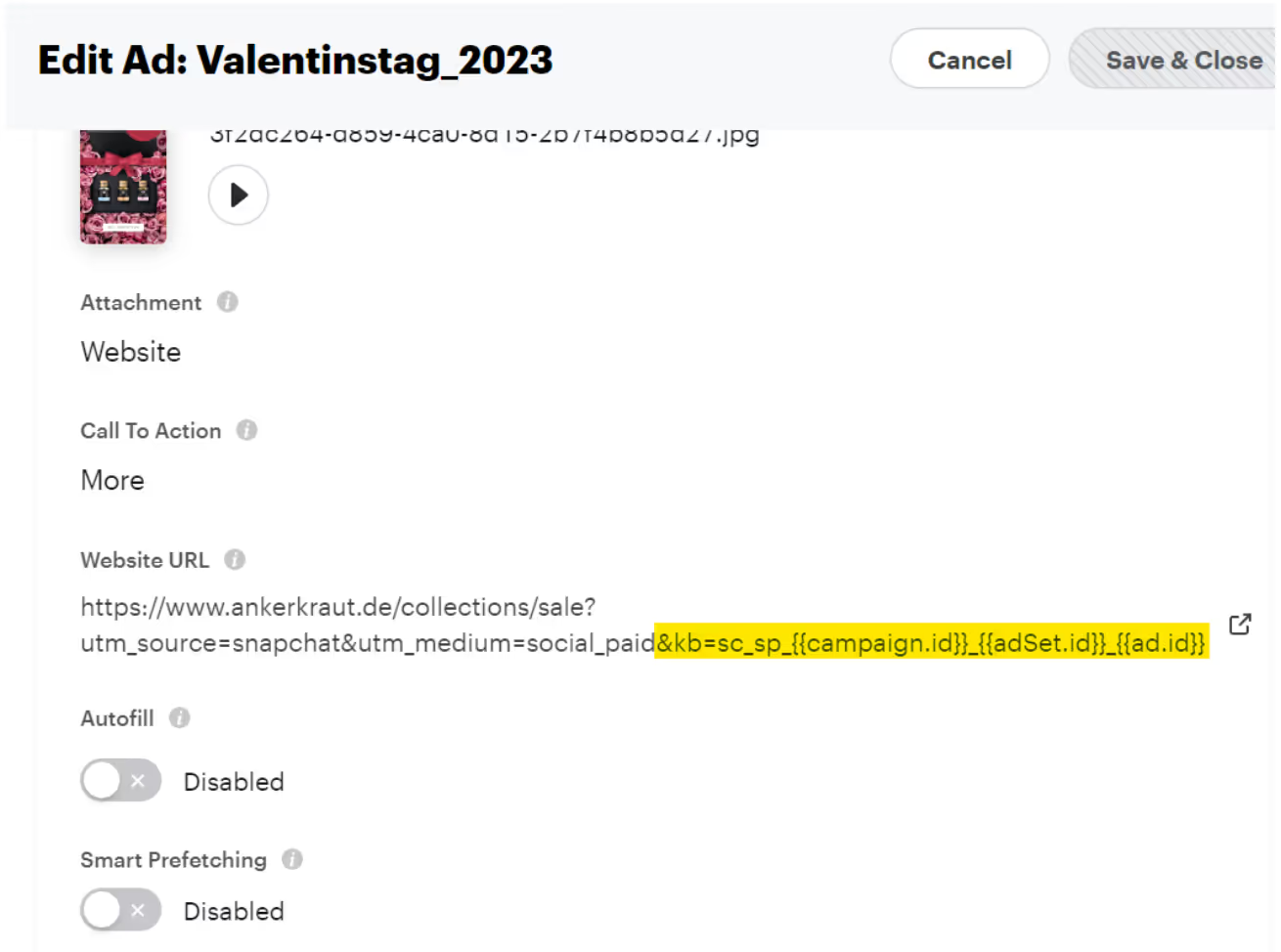
In order for Kickbite to process traffic data from your website and attribute your campaigns to correct channels, there are specific rules for tracking templates to be followed on marketing platforms. Please, follow the rules described below.
In Google Ads tracking templates are applied on campaign level to all the ads under the campaign. To add the tracking template at the campaign level:
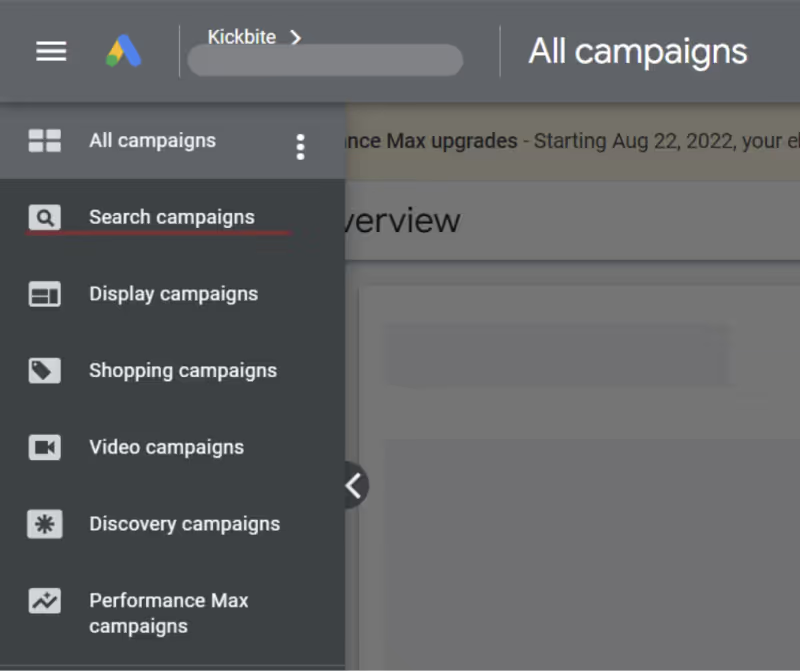
After creating a Campaign (regardless of the type), click on the campaign type menu that will undergo the tracking template implementation (it has to be done for each type).
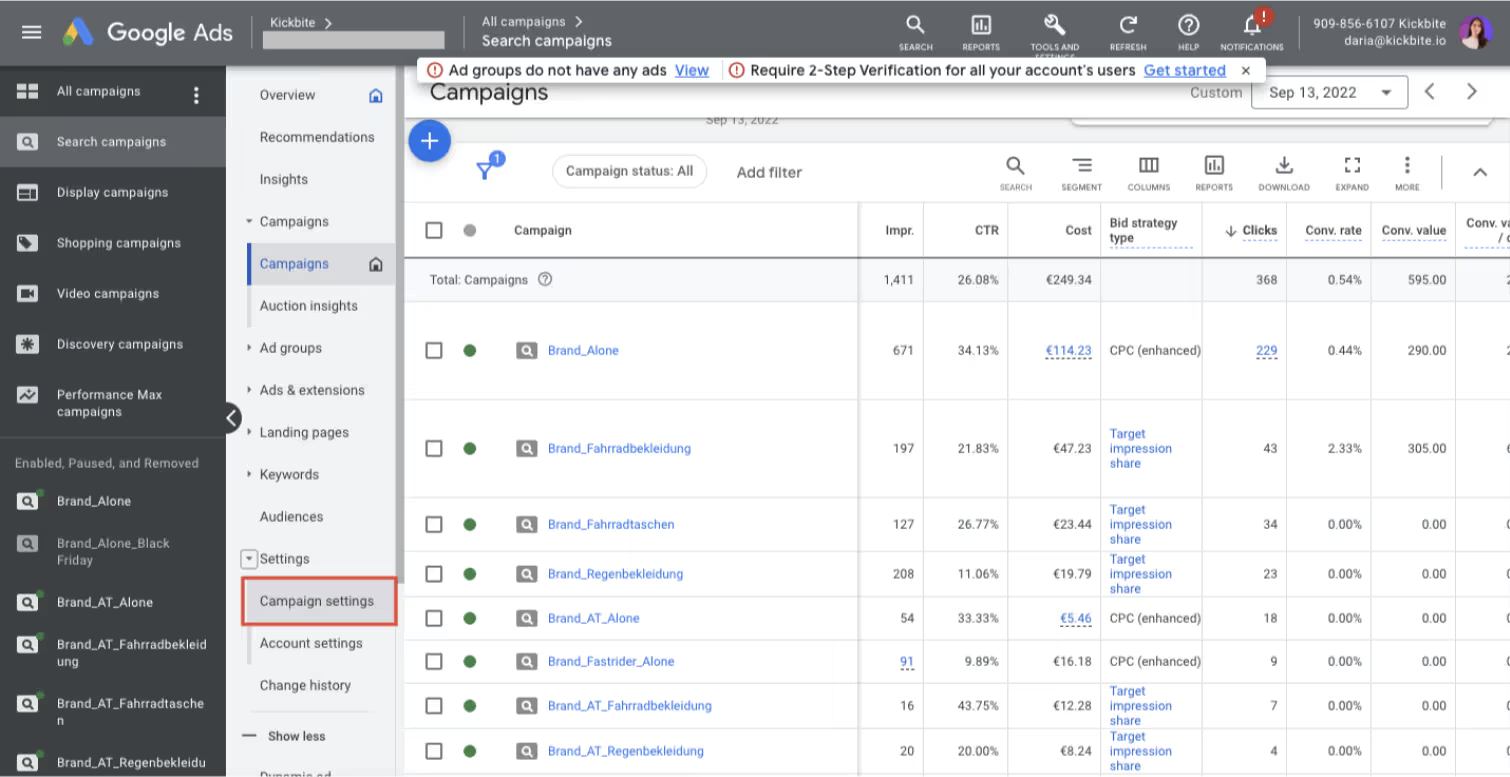
Click settings > Campaign settings.
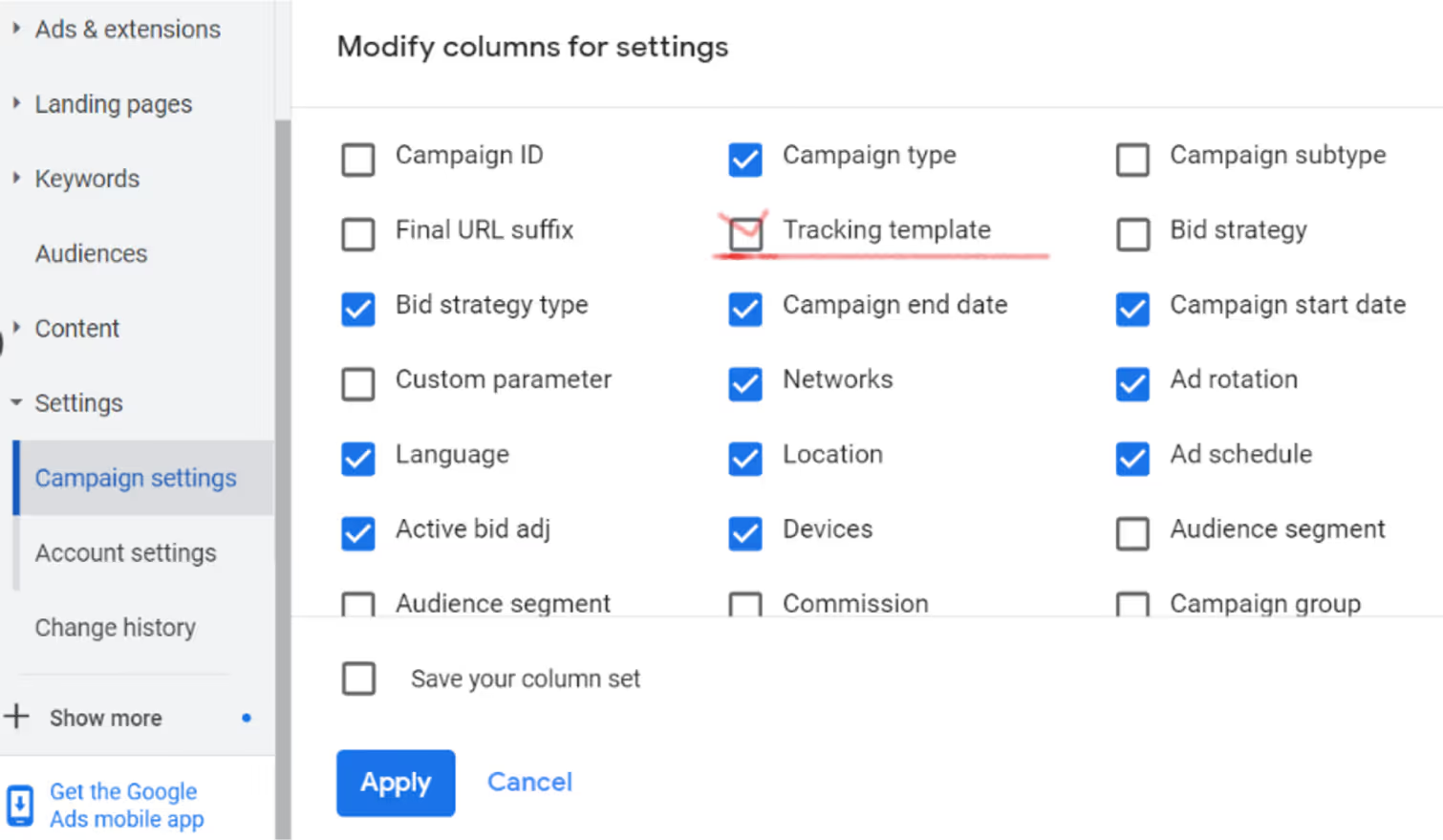
Click on Columns to add the Tracking Template option and then ‘Apply’.
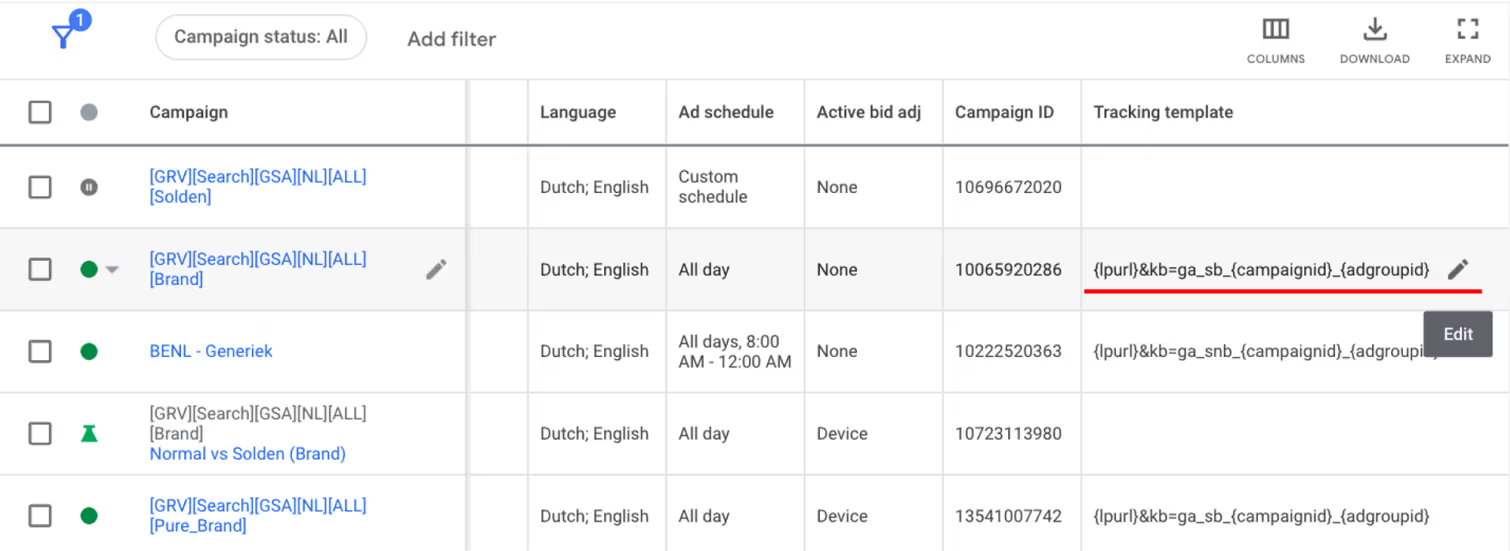
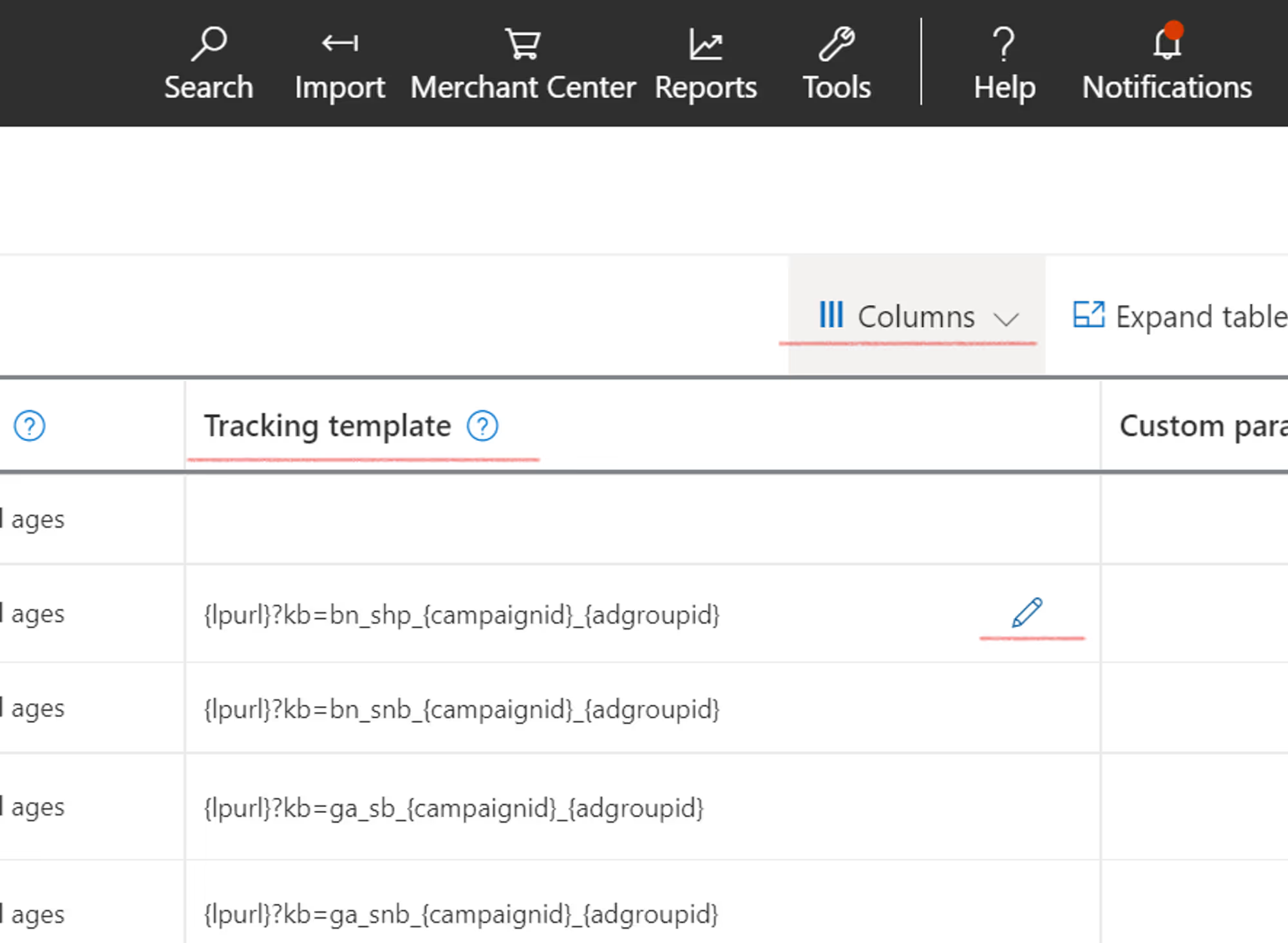
Click on ‘Edit’ to modify the tracking template according to the tracking instructions per channel and click ‘Save’.
Select the campaign > Settings > Additional settings.

In “Campaign URL option” add Kickbite tracking code in the field ‘Tracking template’ and save the settings.

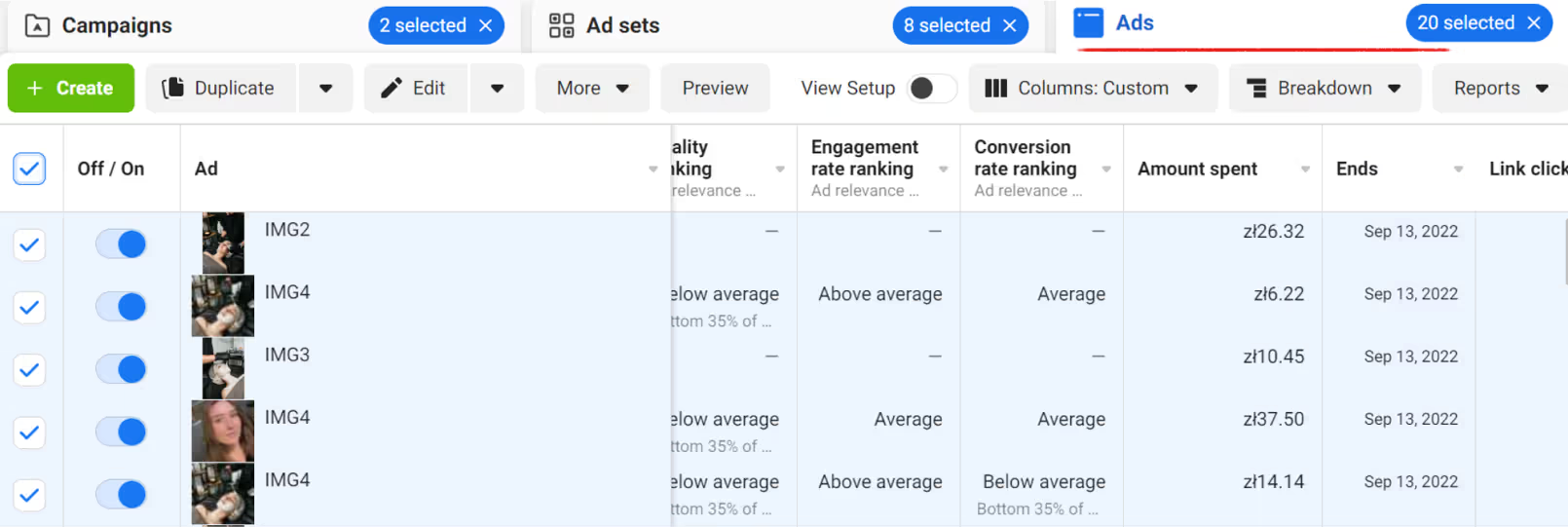
Go to Campaigns > Adsets > Ads. Select all of the ads to which you want to add a tracking template.
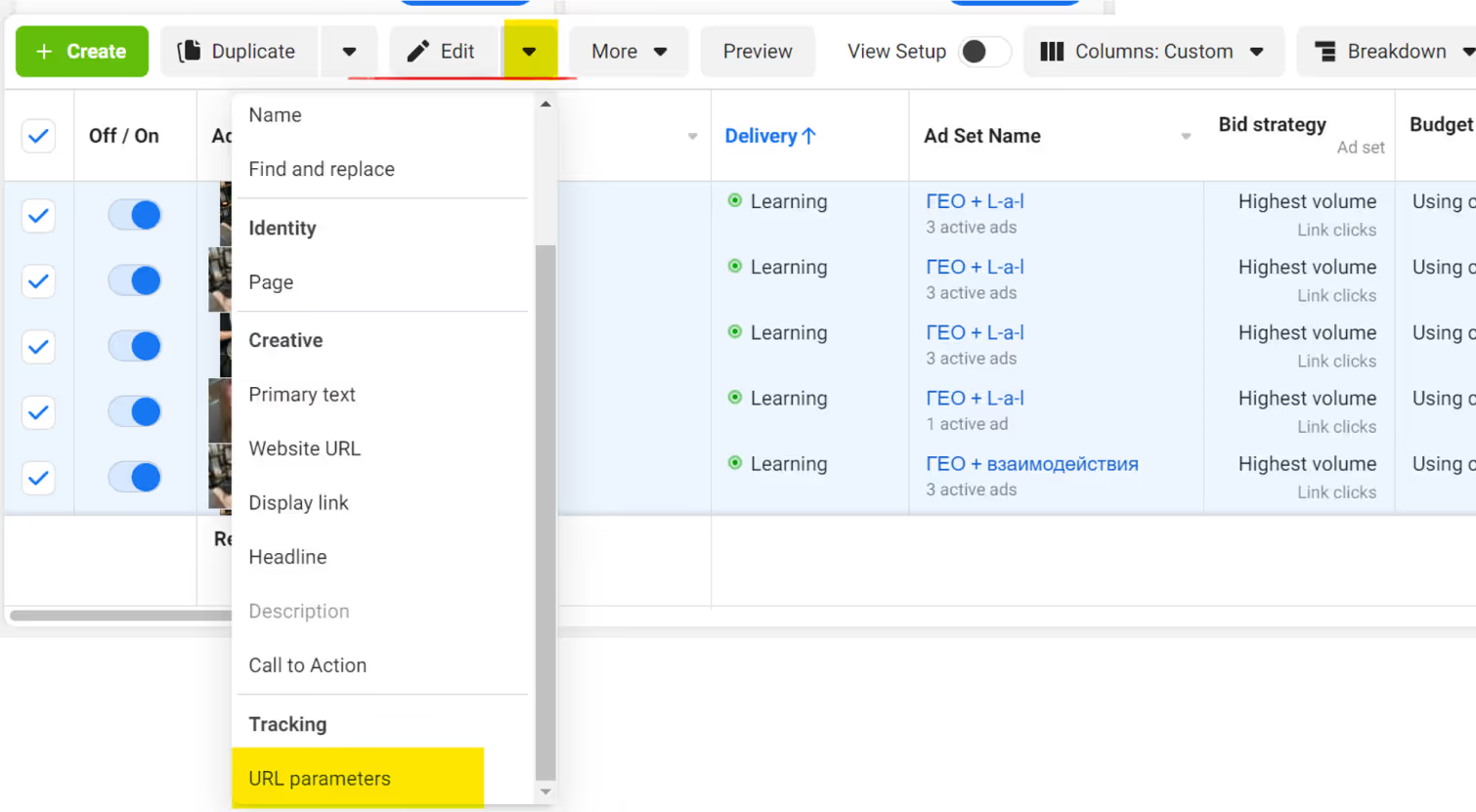
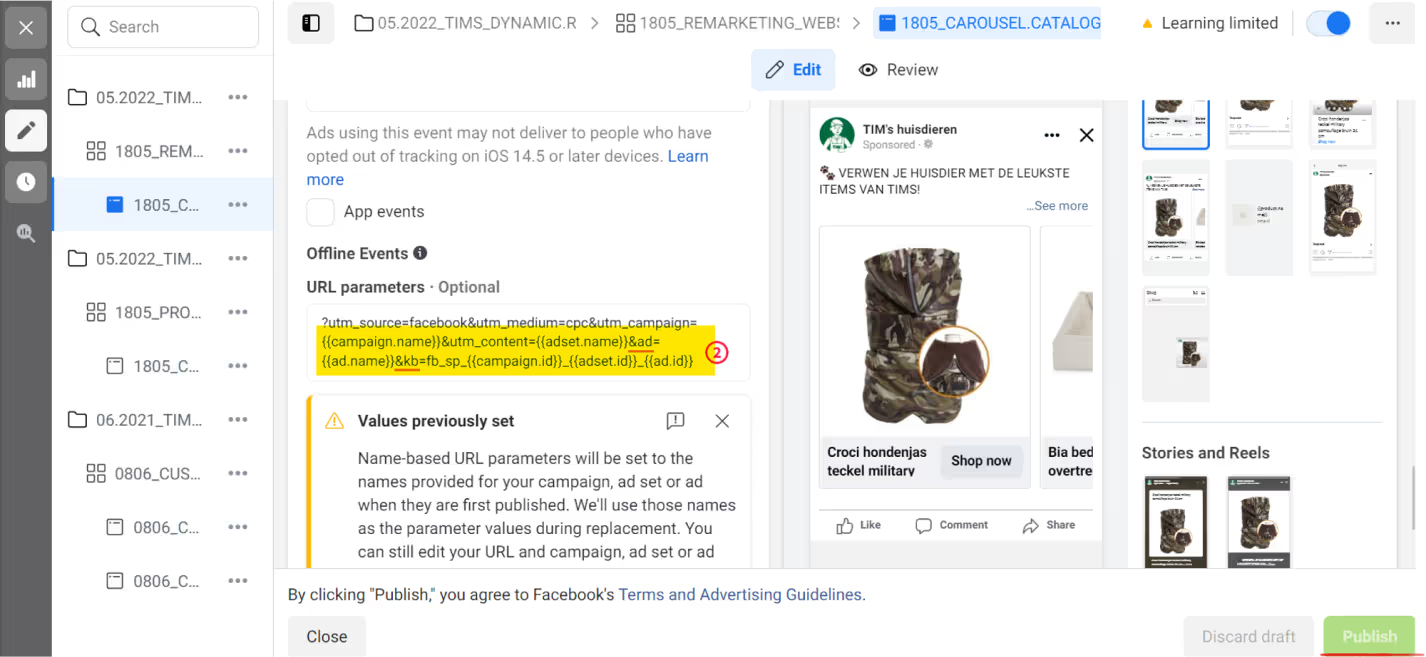
Click ‘URL parameters’ in the drop-down menu near ‘Edit’.
Paste the Tracking Template in the first field for bulk changes. Or you can edit each ad in the fields below. Click ‘Publish’.

Choose one ad and do the same 2 steps like for version 1 (above), but click ‘Edit’. Paste the tracking code In the ‘URL parameters’ at the very end of page. Click ‘Publish’.
In Microsoft Ads tracking templates are added on campaign level. In your Bing account, you need to follow almost the same procedure as in Google Ads:
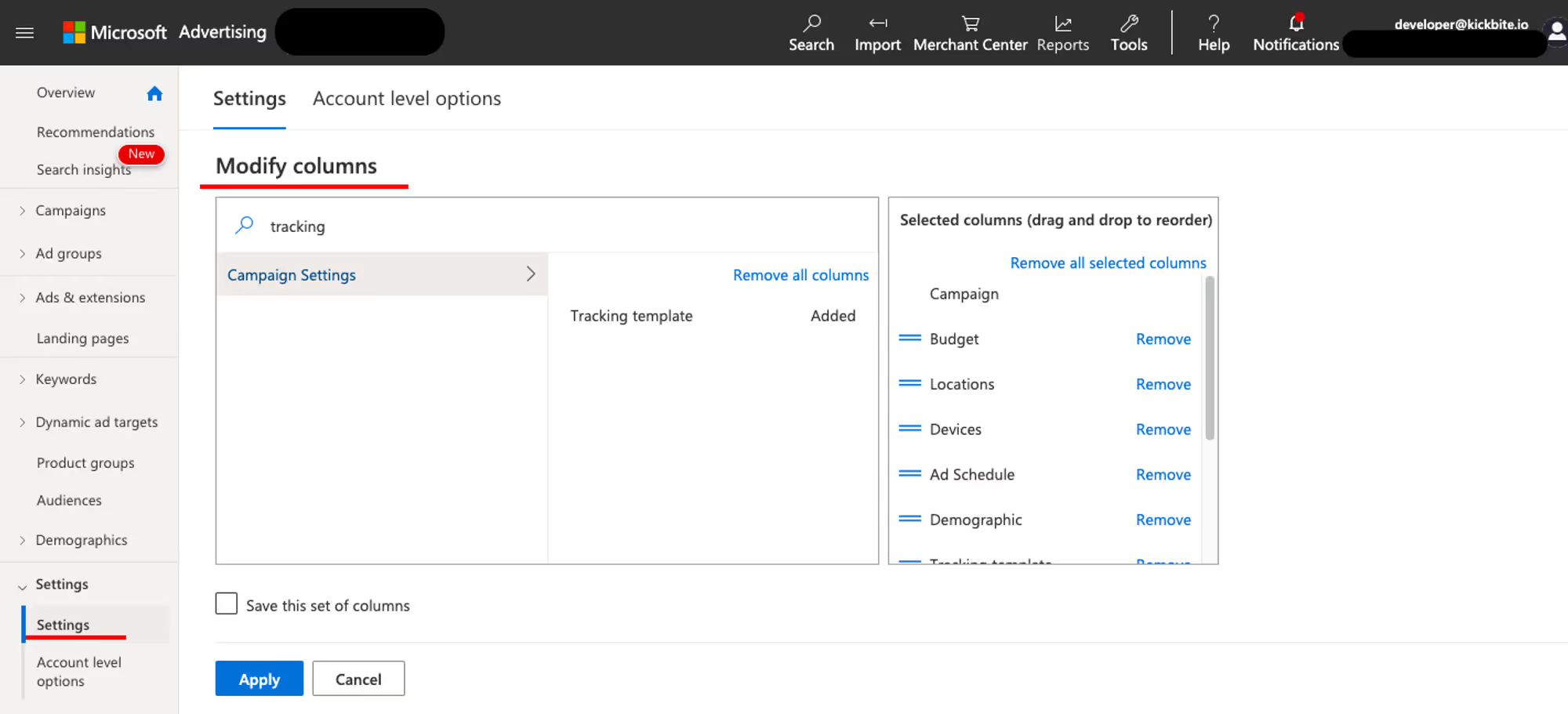
The first step is to go to Settings and add the “Tracking Template” column though Columns -> Modify Columns:
Then add the tracking template for each campaign, according to its type.
On this platform you should add the tracking template on an ad level in destination url after the link using ‘&’ sign.
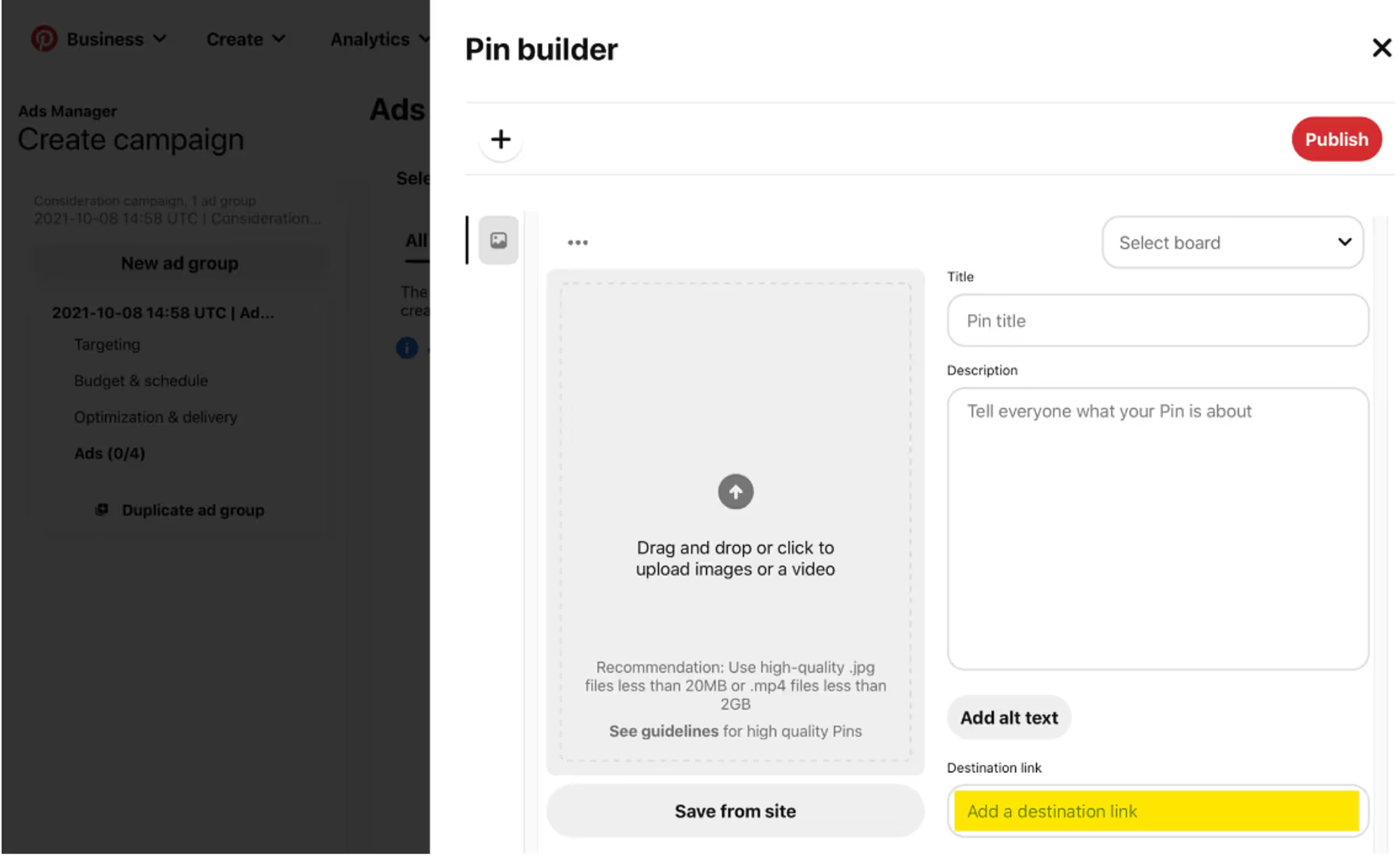
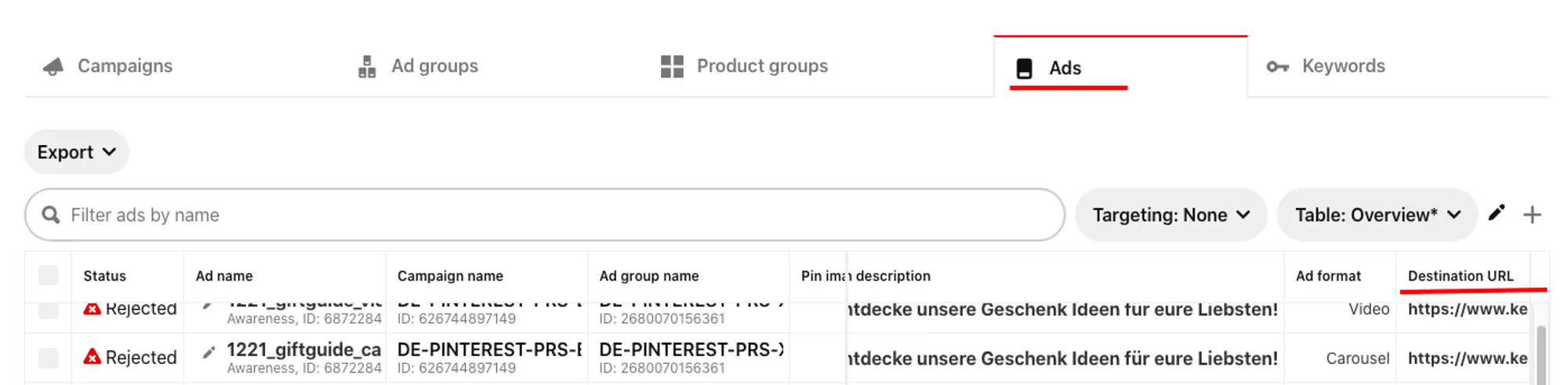
Go to Campaigns > Adsets > Ads. Select the ad to which you want to add a tracking template > Click ‘View’.

Scroll to ‘Destination page’ block and paste a tracking template. Publish changes.
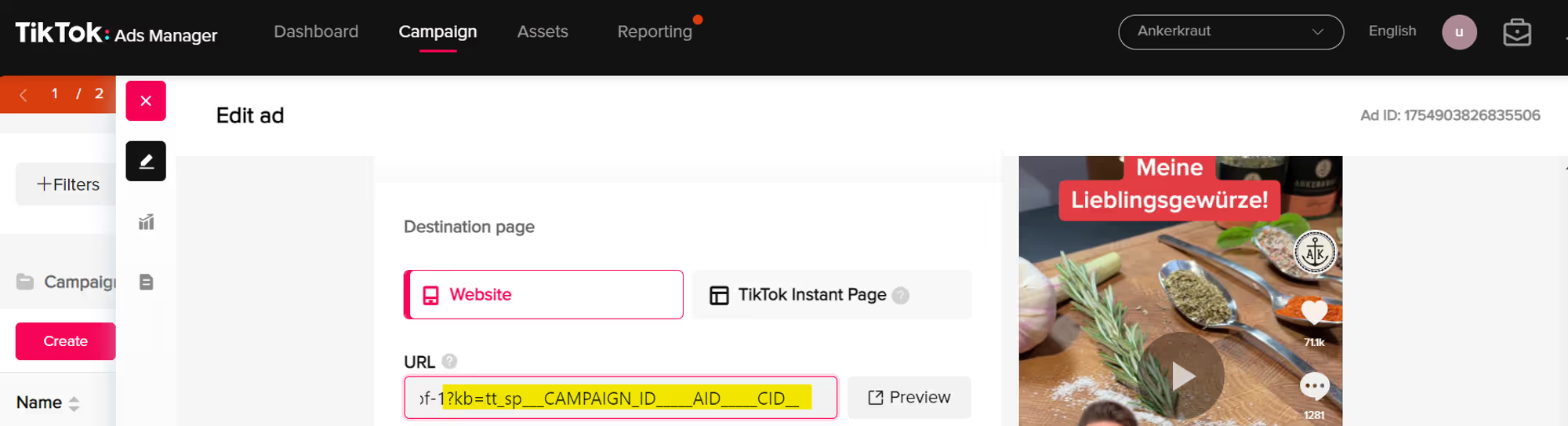
Go to Campaigns > Adsets > Ads. Select the ad to which you want to add a tracking template > Click ‘Edit’.

Scroll to Website URL block and paste a tracking template. Publish changes.